New in 2.1: know when your card is safe to format

Never lose a file from your card again.

FlightFrame Studio offloads your photos and videos from the SD card, checks every file against the original and hands you an organized project, backed up and ready for Lightroom Classic. Built for drone pilots and photographers who can’t reshoot the job.

Free download on the Mac App Store. Pro features come with a 14-day free trial, then a one-time purchase of $79.99. No subscription. Requires macOS 15 or later.

Offloading the drone card SHA-256 verification
  • DJI_0142.DNG9f2c41e07ab3d58c6e1f0a92b7d4c3e8Verified
  • DJI_0142.JPG47be03d9c1a6f2e85b0d7c4a93e1f6b2Verified
  • DJI_0143.MP4c80d2f6a4e19b7d3a5f0e8c21b6d4a97Verified
  • DJI_0143.SRT1e7a9c3f5b08d2e64c1a7f9b3d5e0c28Verified
  • DJI_0144.DNGb5f3e1a8c7d2094f6e3b1a5c8d7f2e04Verified
128 files verified 0 mismatches
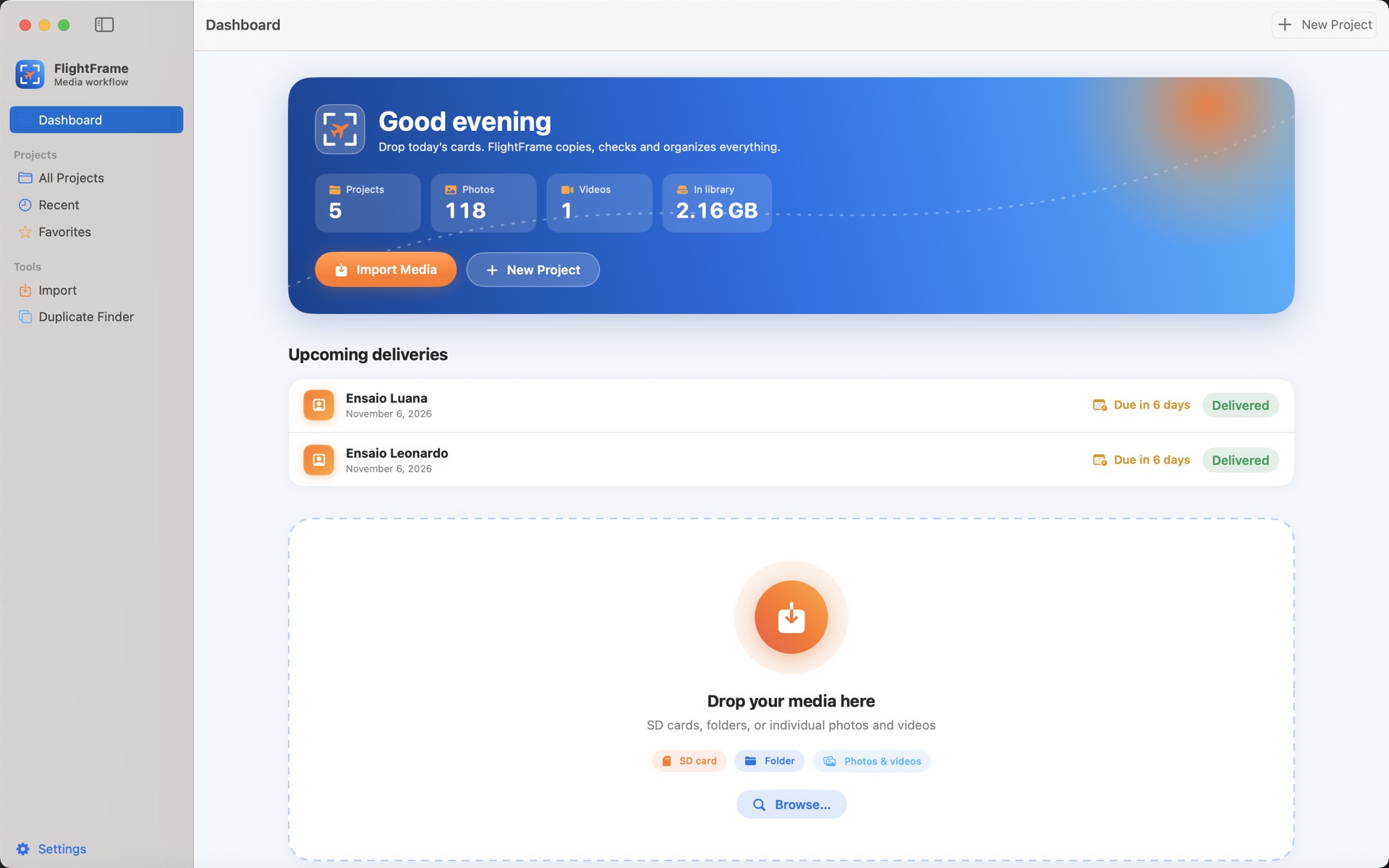
FlightFrame Studio Dashboard with the drop area for a card and recent verified projects
The FlightFrame Studio Dashboard: drop in your card and go.
  • Verified copiesEvery file checked against the original with SHA-256.
  • Originals untouchedThe app only reads your card. Nothing is moved or deleted.
  • Nothing overwrittenFiles with the same name get _2. They never replace another file.
  • All on your MacNot a single photo goes to the cloud.

Dragging a folder in Finder and hoping isn’t a backup.

Every job ends the same way: a full card, a client waiting and that nagging question of whether everything really got copied.

The copy that looked complete

Finder never checks that a file arrived intact. One bad sector on the card and you find out in the edit.

The card formatted too soon

Without a second, verified backup, one failed drive takes the whole job with it.

Drone shots with the wrong time

The drone’s clock drifts, and Lightroom shows your photos hours off from your video.

Three cards, three IMG_0001s

Duplicate names get mixed up in the catalog, and the wrong photo goes to the client.

Flights and looks all mixed up

Sorting out which shot came from which flight or set, by hand, job after job.

Folders built by hand

RAW, JPEG, video, .SRT, selects and deliverables set up from scratch on every project.

FlightFrame Studio turns that end-of-day routine into one click, with proof that every file made it intact.

From card to Lightroom in four steps

You decide what to copy. FlightFrame Studio handles the copying, the verification and the organizing.

Drop in the card and review

Drag in an SD card, a folder or individual files. In seconds you see everything on it, before a single file is copied.

  • Flights and sets split by time and place
  • Duplicates caught before copying
  • A drifting drone clock detected and corrected
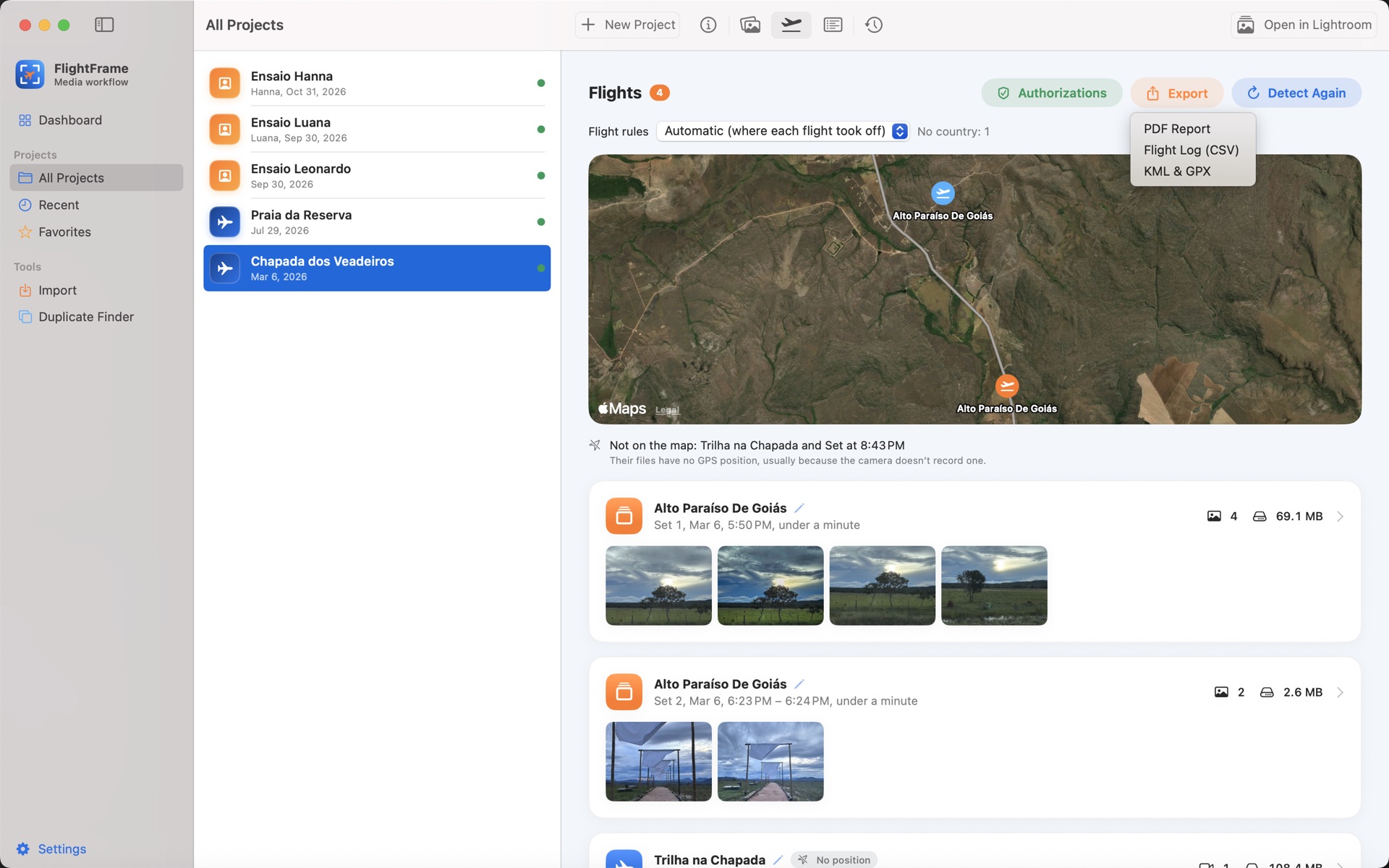
A drone project’s flights on a map, each one named after where it took off

Create the project in one step

Pick the kind of job, from a real estate flight to a family session, and FlightFrame Studio builds the right folder structure. If you like, rename the copies with a template like 2026_10_12_ana_0001 and turn on the backup to a second drive.

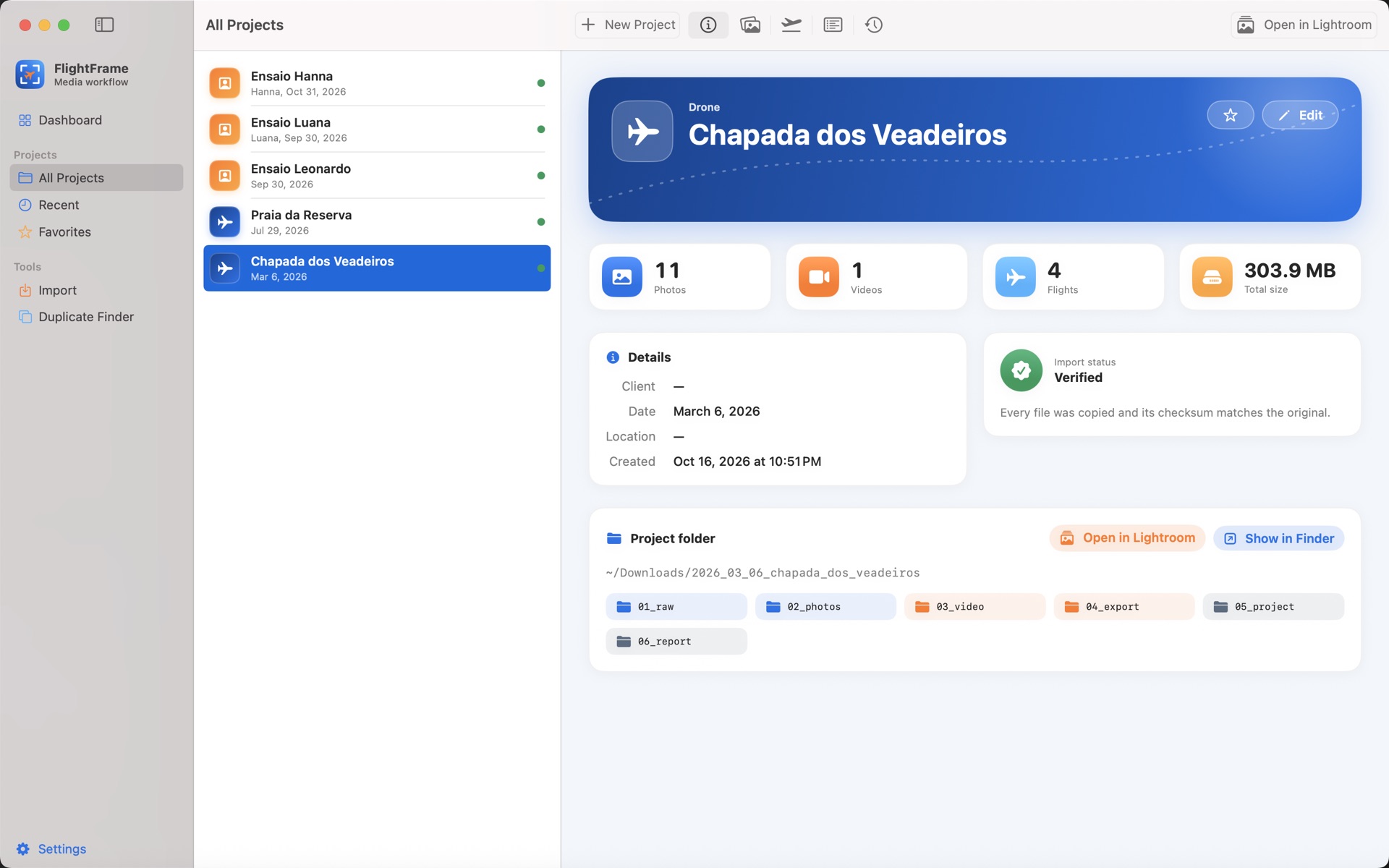
A project with Verified status and the folders FlightFrame Studio created

Copy with proof

Every file is copied, safely written and read back to compare its checksum with the original. Then a second copy goes to your backup drive and gets verified again. As soon as the first copy is done, you can eject the card.

  • A report with every file’s checksum
  • Corrected time, authorship and keywords written to the copies
  • Verified status on every project
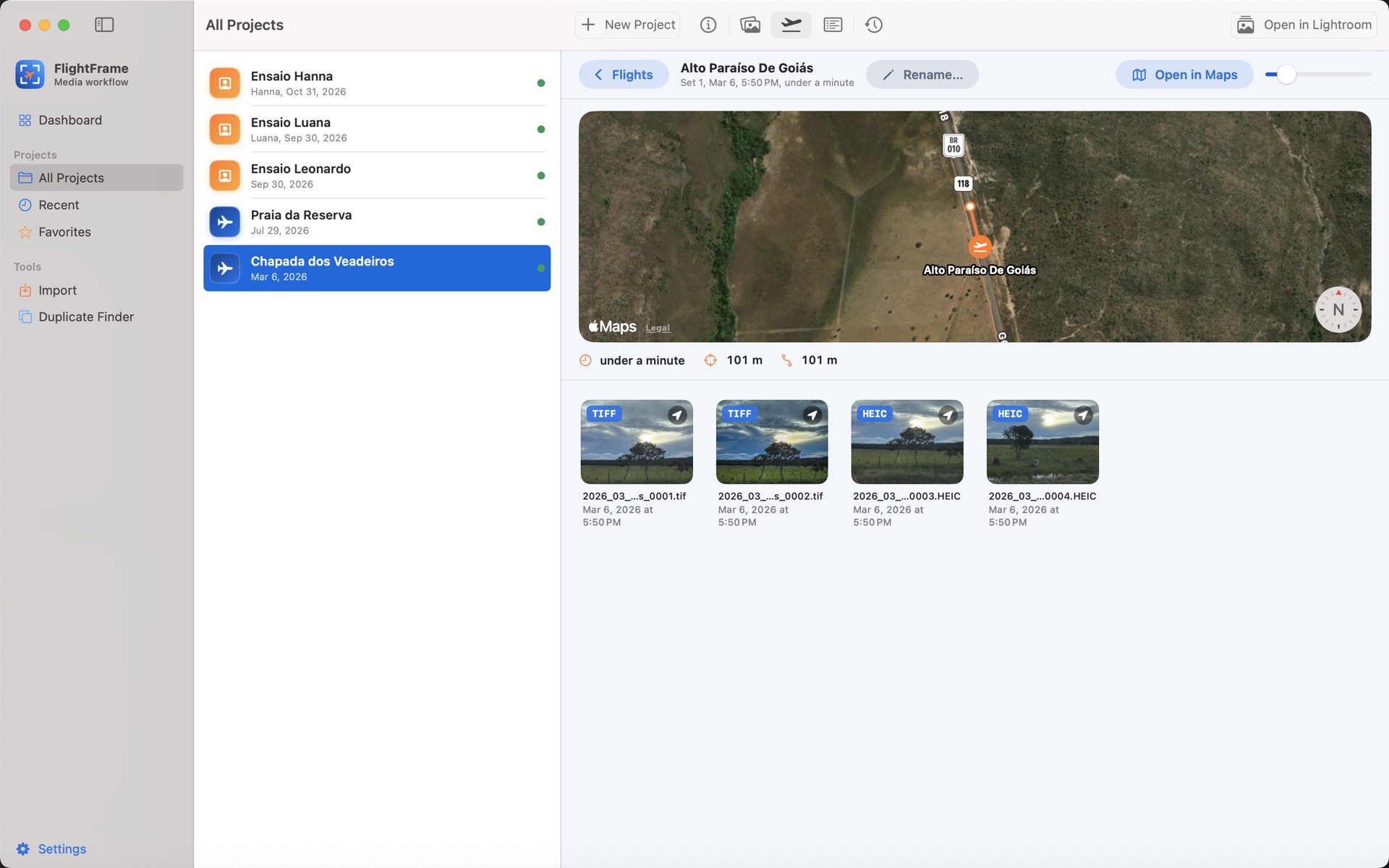
One flight with its track on the map and the verified photos taken on it

Open in Lightroom

One click and Lightroom Classic imports the project already organized: collections by year and project, one per flight or set, client and location keywords and the right time on your drone shots. See everything it does for your catalog.

New in 2.1

Safe to format the card? FlightFrame Studio answers with proof.

Before you erase a card, know whether every photo and video is already in the project and in the backup. Not by name: by the content of each file.

  1. Free

    Can I format it?

    Connect the card and the app checks every file by SHA-256: it’s in a project, the project copy is still there, and a verified copy is in the backup. The answer comes in green, yellow or red, with a list of what’s missing and a button to import just that.

  2. Pro

    A third copy, the 3-2-1 rule

    Beyond the project and the backup, a third copy on another drive, a NAS or a Dropbox, Google Drive or iCloud Drive folder, verified on every import. Complete Backup copies what older projects are missing.

  3. Pro

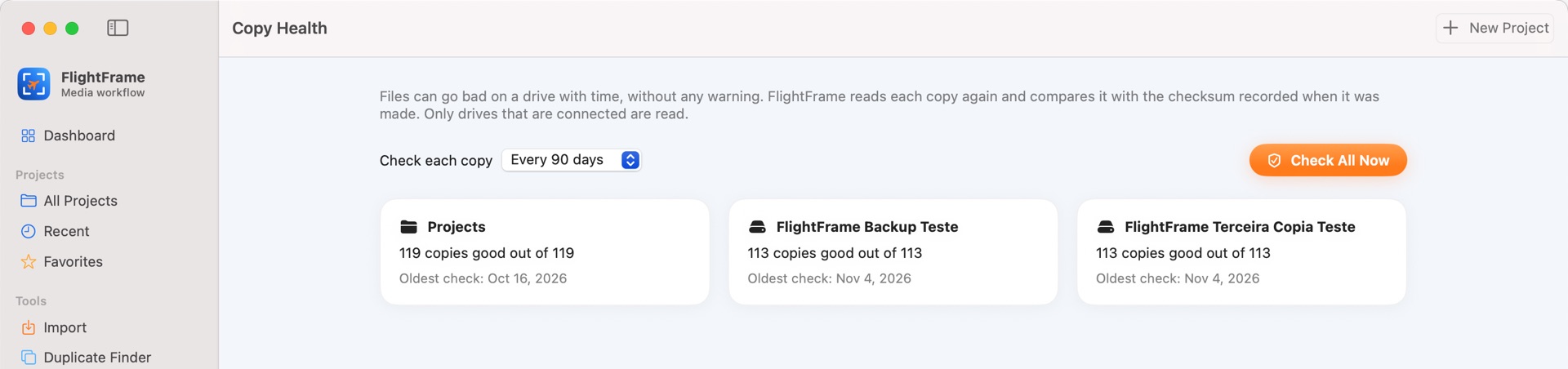
    Copy Health

    Files go bad on a drive over time, without warning. The app reads your copies again every so often and, if a photo got damaged or went missing, restores it from a good copy. The damaged one is kept beside it, never deleted.

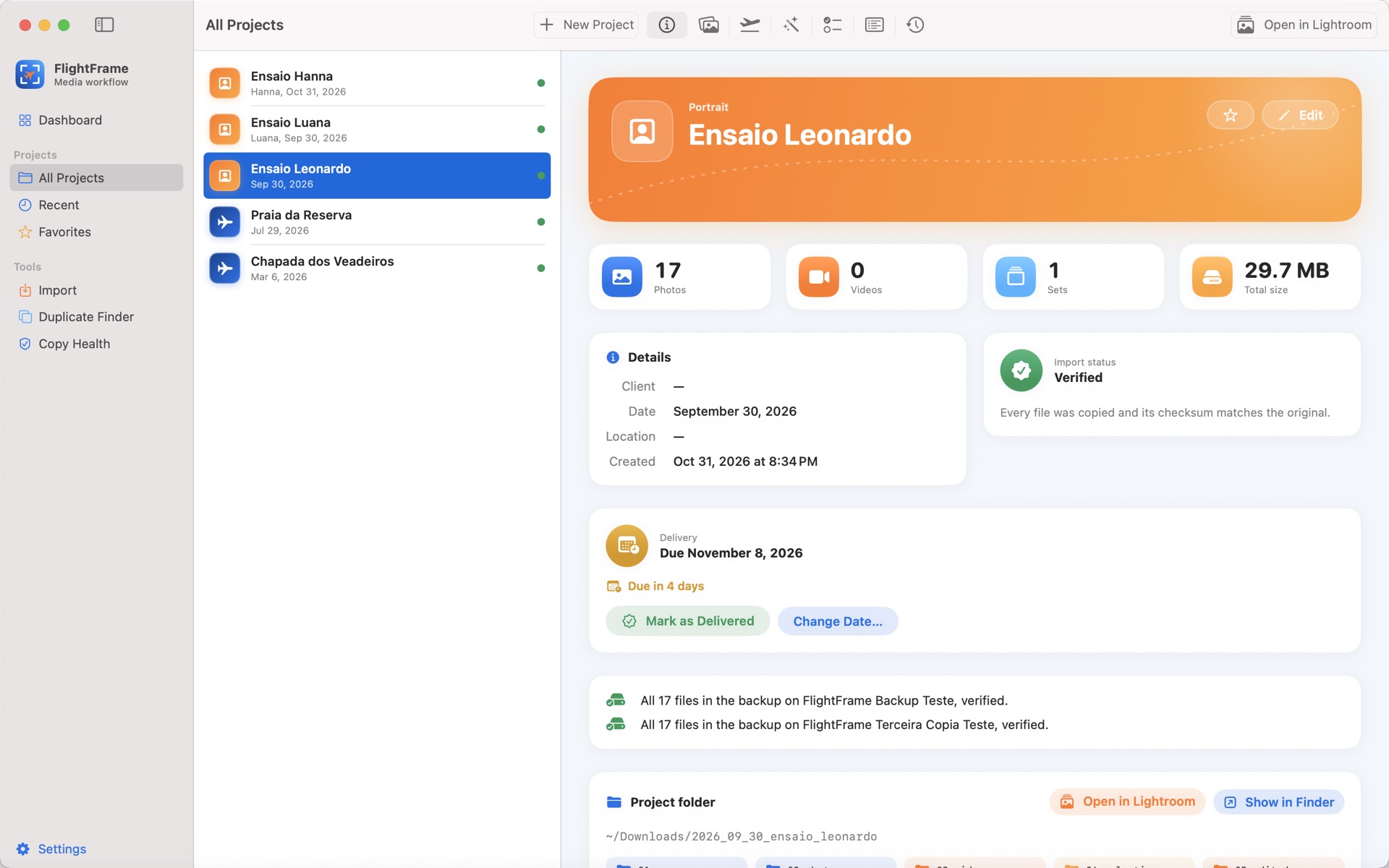
A session’s Overview with its backup card: 17 files verified in the backup and 17 in the third copy
Every project shows what’s already in each backup.
Copy Health with the state of the project, the backup and the third copy
Copy Health reads the backups again and shows how each place is doing.

If you edit in Lightroom Classic, the job shows up ready.

Before the import, FlightFrame Studio does everything you’d otherwise do by hand in the catalog. When Lightroom opens, your photos already have the right time, your author info and their own flight or set.

Without FlightFrame Studio

  • Import the card and wait on an unverified copy
  • Fix drone shots with Edit Capture Time
  • Apply a copyright and contact info preset
  • Build a collection for every flight or look by hand
  • Type in client and location keywords
  • Figure out which IMG_0001 came from which card

With FlightFrame Studio

  • One click on Open in Lightroom
  • Photos imported from the project folder, already verified
  • The right time from the start, drone shots included
  • Copyright, creator and contact info already filled in
  • Collections by year and project, one per flight or set
  • A “Client selection” collection with the photos your client picked
  • Client, location and job type keywords
  • Unique file names, no mix-ups in the catalog

A FlightFrame Studio panel in Lightroom

On every photo, see its flight or set, the location and confirmation that the copy was checksum-verified.

RAW, DNG and JPEG

The right time, authorship and keywords reach your catalog in every format your drone and camera shoot.

A catalog that stays consistent

Every job shows up with the same folders and collections, project after project, without relying on anyone’s memory.

Set up in a minute

Install the plug-in from the app’s Settings and it shows up in Lightroom Classic’s Plug-in Manager.

Requires Lightroom Classic. The cloud-based Lightroom doesn’t support plug-ins. This feature is part of FlightFrame Pro, with a 14-day free trial.

Built for the way you work

For drone pilots

Your flights organized with the right time, with no spreadsheets and no time zone math.

  • The right time in LightroomA drifting drone clock is detected and the corrected time is written to the copies.
  • Flights split automaticallyEach flight found by pauses and distance, and named after the neighborhood or town.
  • GPS and altitude from your videoRead from .SRT files, including each flight’s max altitude.
  • Telemetry stays with the right clip.SRT and .LRF files travel with each video, even when the copies are renamed.
  • 360° videoAvata 360 and Osmo 360 recognized and copied with verification.
  • A map of every flightThe track, the takeoff point and your photos on the map, free for everyone.
  • Flight log and PDF reportA spreadsheet flight log, a PDF report for clients and KML and GPX export.
  • Part 107 and LAANC checksPaste or type your LAANC authorization and see whether each flight stayed within its dates, times, area and the 400 ft limit, with FAA Facility Maps for controlled airspace. Flying in Brazil? SARPAS authorizations are checked too.

For portrait photographers

From card to delivery without redoing work: the double backup you promise in your contract, culling and client selection in one app.

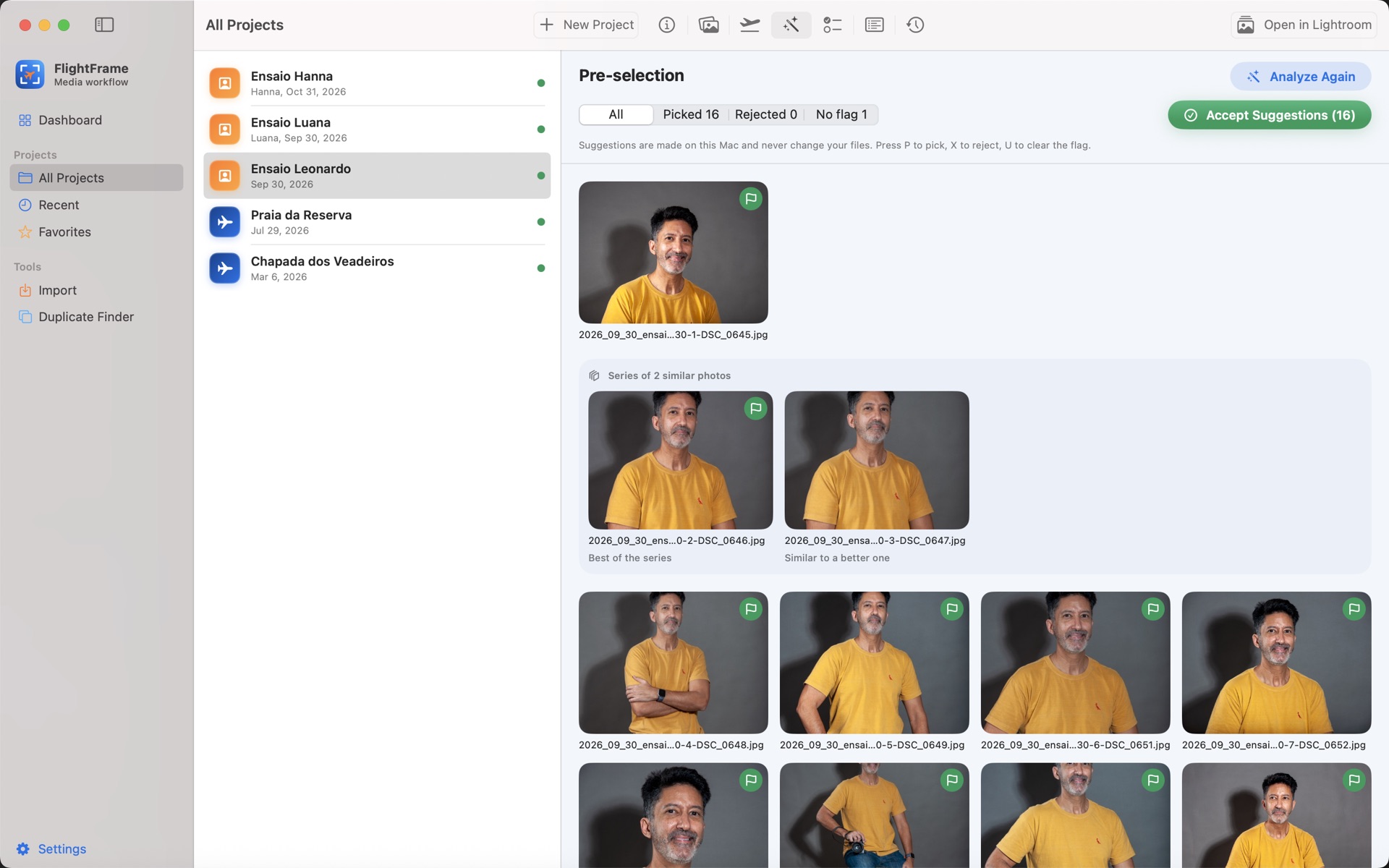
  • AI culling, right on your MacBlurry shots and the weaker frames of each series are set aside, always with a reason, and closed eyes are flagged for you to check. Suggestions never decide on their own, and no photo leaves your computer.
  • Client proofsLight, numbered, watermarked photos plus a PDF contact sheet, ready to text. The numbers your client sends back go straight into the selection.
  • Delivery deadlines with remindersEvery session’s due date on the Dashboard and a heads-up two days before it’s due. Free for everyone.
  • Client selection from a textPaste the list your client texted or emailed, or open a spreadsheet. File names, numbers and ranges like “120 to 125” all work, and the photos they picked are copied, verified, to your selects folder.
  • Lightroom Classic, organizedCollections by set, a “Client selection” collection, client keywords and your copyright, ready on import.
  • Double backup in one importYour project and a second drive or NAS, both verified against the original.
  • Session folders ready to goRAW, photos, selects, edited and delivery, created as you need them.
  • File names your wayKeep the card’s names or use date, project and number, with RAW and JPEG always together.
  • Sets split by timeEach look or location becomes its own group, named however you like.
  • Your copyright on every photoCreator, contact info and copyright written to the copies automatically.
  • Privacy for boudoir sessionsThumbnails kept in memory only, never saved to disk.
Culling a portrait session, with the picks, a series of similar shots and the best of each series

Why not just drag it in Finder?

Finder copies. FlightFrame Studio copies, proves the copy is right and gets everything ready to edit.

When you offload a cardFinderFlightFrame Studio
Checks every file against the originalNoYes, with SHA-256
Verified backup to a second driveNoYes
Files with the same nameAsks to replaceNever replaces
Project foldersBy handAutomatic
Flights and sets splitNoYes
Drone time correctedNoYes
A report for every importNoYes
Lightroom already organizedNoIn one click
Culls blurry shots and picks the best of each seriesNoYes, on your Mac
Numbered client proofsNoYes
Client selection from a textNoYes
Map and log for every flightNoYes

Your photos never leave your Mac.

Boudoir sessions, clients’ homes, kids’ faces: FlightFrame Studio treats all of it as confidential.

  • No account, no sign-in and no cloud.
  • No photo and no file name is ever sent anywhere.
  • The only internet requests are about location, like place names and maps, and they never include your photos.
  • No ads and no data collection.

Start free. Pay once if you want more.

Keeping your files safe is always free. Pro adds the features that save you hours on every job.

Free

$0forever

  • Import with verified copies
  • A report with every file’s checksum
  • Projects with organized folders
  • Thumbnails and full metadata
  • Flights and sets detected automatically
  • Duplicates on the card before you copy
  • A map with each flight’s track
  • Delivery deadlines with reminders
  • Can I format it? Card check
Download free

FlightFrame Pro

$79.99one-time purchase, no subscription

  • Everything in Free
  • Verified backup to a second drive or NAS
  • Rename copies with templates
  • Drone time corrected in the copies
  • Authorship and keywords in the copies
  • Open in Lightroom with collections by flight or set
  • AI culling, right on your Mac
  • Watermarked client proofs
  • Client selection from a text, email or spreadsheet
  • KML, GPX, flight log and PDF report
  • LAANC, Part 107 and SARPAS authorization checks
  • Place names and custom names for flights and sets
  • Duplicate Finder across all your projects
  • A 3-2-1 third copy and Complete Backup
  • Copy Health, with restore
  • Every future Pro feature
Try free for 14 days

The trial is free, doesn’t renew and is never charged. You buy through the App Store, and Pro works on every Mac signed in with the same Apple Account. Price in the U.S.; other countries see their local price on the App Store.

“I built FlightFrame Studio because I needed it. After every flight and every session, I lost time copying cards, fixing timestamps and hoping my backup was complete. Now my Mac does it for me, with proof.”
Leo Nogueira, drone pilot, photographer and creator of FlightFrame Studio

Want new features before everyone else? Join the TestFlight beta.

A family of apps for people who can’t lose a file

FlightFrame Studio takes care of every new card. From the same maker, two more apps take care of what came before and of all your backups.

  1. Before · your old archive

    Acervo Organizer

    Organizes years of photos and videos scattered across hard drives and NAS, without risking a single file.

    • Shows the result before anything moves
    • Finds duplicates by content, not by name
    • Undoes any organization in one click
    On the Mac App Store Meet Acervo Organizer
  2. Today · every new card

    FlightFrame Studio

    Takes the card all the way to an organized project and Lightroom, with every file verified.

    • Copies and backups verified by SHA-256
    • Flights, sets and on-device AI culling
    • Tells you when the card is safe to format
    You are here
  3. Always · your whole library

    Photo Backup Guardian

    Checks that every photo and video in your library has its 3-2-1 backup copies, even files that never went through FlightFrame.

    • External drives, NAS and cloud folders, without downloading anything
    • Completes missing copies, without deleting or overwriting
    • “Can I erase this disk?” before you reuse a drive
    On the Mac App Store Meet Photo Backup Guardian

All three follow the same rules: nothing is overwritten, nothing is deleted, every copy is verified by its content, and your photos never leave your Mac. FlightFrame Studio and Photo Backup Guardian also share the same standard for folders, copies and reports.

Frequently asked questions

Will it run on my Mac?

Yes, if it’s running macOS 15 (Sequoia) or later. FlightFrame Studio runs on both Apple silicon and Intel Macs.

Does FlightFrame Studio change or delete files on my card?

Never. The app only reads your card. Time and authorship fixes go to the copies, and only after they’ve been verified against the original.

How do I know the copy is correct?

Every file is read back after it’s written and compared with the original using a SHA-256 checksum, the same kind of check professional backups use. Each import report lists every checksum.

Do I need Lightroom?

No. FlightFrame Studio organizes everything into folders that work with any editor. If you use Lightroom Classic, you also get the Open in Lightroom button, with collections, keywords and authorship ready to go.

Does it work with the cloud-based Lightroom?

The one-click integration is for Lightroom Classic only, because the cloud-based version doesn’t support plug-ins. The organized folders and the corrected time in the copies work with any editor.

Do I have to change how I work in Lightroom?

No. FlightFrame Studio delivers your photos to the same catalog you always use, with collections and metadata already in place. Your presets and your editing stay the same.

How does client selection work?

Copy the list your client sent, from a text, iMessage, WhatsApp or email, and paste it into the session’s Selection tab, or open a .txt or .csv file. FlightFrame Studio finds each photo by name or number, even after renaming or exporting, tells you what it couldn’t find and copies the picks, verified, to the selects folder. In Lightroom Classic, they show up in a “Client selection” collection.

How does AI culling work?

After each portrait import, FlightFrame Studio analyzes the photos on your Mac: it sets aside blurry shots, groups similar series and points out the best of each, and flags closed eyes for you to check. Every suggestion comes with a reason, and you accept, change or ignore it. No photo is uploaded to the cloud, and in Lightroom Classic your choices show up as flags and in a “Pre-selection” collection.

How do I send proofs to my client?

In the Selection tab, click Proof for the Client and choose all photos or only your culling picks. The app makes light, numbered JPEGs with your watermark, plus a PDF contact sheet. Send them by text or email, and when your client replies with the numbers, paste the reply in the Selection tab: the right photos are found and copied.

Which cameras and drones are supported?

DJI drones, including .SRT telemetry files and 360° video, and the RAW formats macOS recognizes, like DNG, NEF, CR3 and ARW, plus JPEG, HEIC and MP4 and MOV video.

Does FlightFrame Studio check my LAANC authorization?

Yes, for your information. Paste or type your LAANC confirmation and the app compares each flight with the authorized dates, times, area and altitude, along with Part 107’s 400 ft limit. Turn on FAA Facility Maps to see the ceiling in controlled airspace. Only the takeoff position is looked up, and you’re still the remote pilot in command.

Where do I download FlightFrame Studio?

On the Mac App Store, for free. Updates come through the App Store, like any other Mac app.

Is it a subscription?

No. The download is free, and FlightFrame Pro is a one-time purchase of $79.99 through the App Store, with updates included. AI culling tools usually bill you every year; here you pay once.

Does the 14-day trial charge me anything?

No. The trial is free, doesn’t renew on its own and is never charged. When it ends, the Pro features lock again, and your projects and files stay exactly as they are.

Can I use it on more than one Mac?

Yes. Your purchase is tied to your Apple Account. On another Mac, just download the app and click Restore Purchases.

How do I know it’s safe to format my card?

Connect the card and the Dashboard offers Check Card. FlightFrame Studio reads every photo and video and checks by SHA-256 whether the same content is in a project, whether the project copy is still there, and whether a verified copy is in the backup. Green, it’s safe to format; yellow, the backup is missing and one click completes it; red, some files aren’t in any project, and the app selects just those to import. The check is free, and the app never formats or changes the card.

What happens if a file goes bad in my backup?

Drives damage files over time, without warning. With FlightFrame Pro, Copy Health reads your copies again every 30, 90 or 180 days and compares them with the recorded checksum. If a copy got damaged or went missing, it’s restored from a good copy and verified again; the damaged one is kept beside it, with “.damaged” in its name, and never deleted.

What if my backup drive isn’t connected?

The project copy goes ahead as usual, and FlightFrame Studio lets you know the backup is still pending. Later, one click copies just what’s missing.

Why does the app show up as just “FlightFrame” on my Mac?

FlightFrame Studio is its name on the App Store. Once installed, the app uses the short name, FlightFrame, in Launchpad and the menu bar.

What’s the difference between FlightFrame Studio, Acervo Organizer and Photo Backup Guardian?

Each one covers a different moment of your work. FlightFrame Studio handles every new card: it copies with verification, organizes the project, makes the backup and the third copy, tells you when the card is safe to format and checks again the copies it made. Acervo Organizer tidies up what’s already on your drives and NAS from before FlightFrame. Photo Backup Guardian watches your whole library, including what never went through FlightFrame, across every drive and cloud folder, checks the online-only copies in OneDrive, Dropbox and Backblaze B2 without downloading anything, warns you when a 3-2-1 copy is missing and, if you turn on automatic copies, makes the missing ones. Use one, or all three together.

Is there a Windows version?

No. FlightFrame Studio is a native Mac app.

Your next card deserves more than hope.

Download free on the Mac App Store, import your next job and watch every file get verified. Pro features are unlocked for 14 days.